Hey guys, it’s Jake from [My Router Co.] – yeah, the guy behind the routers you probably scroll past on tech forums when you’re setting up your new apartment. Let’s cut to the chase: if you’ve ever glanced at your router’s settings and saw a “Hide SSID” option, you might’ve thought, “Cool, make my Wi-Fi invisible, right?” Spoiler: it’s not some magic hack that’ll stop every tech-savvy creep, but it’s a solid step to tighten your home network. As someone who’s built routers for 7 years, I see so many folks either overdoing it or skipping this entirely. Let’s break it down like we’re over a cup of coffee, no jargon, just real talk. Router
First, let’s clear up what an SSID even is. That’s the name that pops up on your phone when you scan for Wi-Fi – like “Jake’s Super Fast 5G” or whatever you named it after you got tired of the default “Netgear123” garbage. Hiding it just means that name doesn’t broadcast to every device within range. But here’s the thing: modern tech doesn’t make that name vanish forever. If someone’s got a basic network scanner app (they’re free, I’ve seen kids in high school download ‘em for game servers), they can still pick up your router’s signal – they just don’t see the fun name attached to it. So it’s not foolproof, but it’s not useless either. For casual users who don’t want random neighbors messing with their settings, it’s a low-effort win.
Now, how do you actually do it? I’ve noticed most people panic when they log into their router’s dashboard for the first time – it looks like a weirdly designed 2000s website. Let’s make that step-by-step simple, and I’ll add notes for different router models since we make a bunch of ‘em. First, grab your laptop or phone that’s already connected to your Wi-Fi (you can’t edit settings if you’re not on the network, duh). Open a browser, type in the default gateway – that’s usually 192.168.1.1 or 192.168.0.1, or sometimes you can just find it in your phone’s Wi-Fi settings under “Router Info.” Enter your username and password – if you never changed ‘em, it’s probably “admin” for both, but trust me, change that later.
Once you’re in, look for a tab called “Wireless” or “Wi-Fi Settings” – we usually tuck ours under the “Basic” tab for new users, but some higher-end models have it under “Advanced.” Now, you’ll see two options: 2.4GHz and 5GHz networks. Wait, that’s important! A lot of people just toggle one and forget the other. If your router supports both, you have to hide SSID for both bands individually – they’re separate signals, like two different Wi-Fi networks your router is pumping out. Now, the checkbox you’re looking for is usually something like “Enable SSID Broadcast” or “Broadcast Network Name.” Just uncheck that box. Boom, that’s it? Yeah, mostly. But hold on, there are a few gotchas.
First, what happens after you hide it? Your existing devices (your phone, laptop, smart TV) that were already connected won’t lose service – they’ll keep working. But any new device you want to add? You can’t just scan for Wi-Fi like normal. You have to manually type in the SSID name (the one you set, not the hidden one) and the password. That’s a small hassle, but for most people, it’s worth it to cut down on random connection requests. I’ve had customers tell me this alone stopped their neighbor from showing up at their door asking for Wi-Fi – no exaggeration.
Another big mistake I see: people hiding their SSID but leaving the password as “12345678.” Dude, that’s not even a password. Hiding SSID is a extra layer, not the main lock. If someone really wants in, they can guess that password in 2 seconds. So pair hiding SSID with a strong password – mix letters, numbers, symbols, no dictionary words. Our routers even have a built-in password generator in the settings now, so use that if you’re stuck.
Wait, let’s address the “is hiding SSID worth it?” question. If you’re in a super crowded apartment building with 20+ Wi-Fi networks showing up on your phone, hiding yours takes a little clutter. But if you live in a rural area with like 3 networks total, it’s still a good idea, just don’t expect it to be unhackable. Also, smart devices – your Alexa, Google Home, Ring camera – sometimes glitch when you hide the SSID. Why? Because those devices are old, or their firmware hasn’t been updated in years. If that happens, you’ll have to manually set up each one, which is a tiny pain, but usually fixed by updating the device’s firmware or, hey, upgrading to one of our newer routers – we make ‘em with seamless hidden SSID support for all smart gadgets.
Oh, and let’s talk about the “WPA2 vs WPA3” thing, since that’s tied into hiding SSID. We always recommend WPA3, our routers have that enabled by default now. WPA3 encrypts the connection even if the SSID is hidden, so it’s way harder for someone to snoop on your data. If your router is older and only does WPA2, that’s fine, just make sure the password is solid. Never use WEP, that’s like leaving your front door wide open with a note that says “come on in.” That’s ancient tech, don’t touch it.
Wait, have you ever heard of “SSID cloaking” vs “hiding SSID”? Yeah, they’re the same thing, don’t let anyone confuse you. Some brands call it cloaking, some call it hiding, it’s the exact checkbox we talked about. I’ve had tech support calls where a customer was panicking because they couldn’t find “cloaking” and we’re like “it’s the same thing as hiding, bro.” So that’s just brand jargon, ignore it.
Now, let’s debunk some myths. Myth #1: Hiding SSID stops hackers. No, it just keeps casual scanners from seeing your network. Determined hackers can still find your signal – but so can they if you broadcast your SSID. It’s a speed bump, not a brick wall. Myth #2: You have to hide both 2.4 and 5GHz. Wait, no, technically you can hide one and not the other, but why? If you hide 5GHz but not 2.4, your 5GHz is invisible but 2.4 is still out there. Might as well do both to cut down on clutter. Myth #3: Hiding SSID makes your Wi-Fi faster. Nope, it doesn’t change speed at all. It just doesn’t broadcast the name. Your bandwidth is based on your router’s specs and your internet plan, not whether the SSID is hidden.
What about when you mess up? Like, you hide the SSID, then you forget the name, and your laptop disconnects? Don’t panic. If you’re already logged into the router’s dashboard, you can check the current SSID name there – it’s usually on the main status page. If not, you can reset your router to factory defaults (hold the little reset button on the back for 10 seconds) and start over, but that means you’ll have to set up all your networks again. Pro tip: write down your SSID and password somewhere, like a note on your fridge, so you don’t have to go through the reset hassle.
Now, as a router supplier, here’s the real pitch that’s not a salesy plug: if you’re struggling with this, or you have an older router that doesn’t have an easy “Hide SSID” option, or your smart gadgets keep acting weird, we make routers that simplify this. Our latest models have a one-tap “Secure Network” button that does all this for you – hides SSID, enables WPA3, sets a strong password, no digging through settings. No more panicking over router dashboards. We know most people don’t want to be tech experts, they just want their Wi-Fi to work and be safe.
Wait, but don’t just buy from us because of that. If you’re shopping around, make sure any router you get supports hiding SSID. It should be a standard feature, not some premium add-on. If a brand tries to charge you extra for it, that’s a red flag – we include it on every single router we make, no upsells.
Let’s wrap this up with a quick recap, so you don’t have to scroll back: 1. Log into your router’s settings (default gateway, admin credentials). 2. Find Wireless/Wi-Fi Settings, for both 2.4GHz and 5GHz. 3. Uncheck “Enable SSID Broadcast.” 4. Pair with a strong password (use our built-in generator if you need it). 5. Manually add new devices (no scanning) after this. 6. Write down your SSID and password.
If you have questions, or you’re looking to upgrade your router to make this even easier, feel free to reach out to our team to discuss your needs. We don’t do pushy sales calls, we just help folks get the right gear for their home. No weird fine print, no junk routers that break after 6 months.
Wait, one last thing: I’ve had a few customers tell me they hid their SSID and then their smart lock stopped working. That’s usually because the smart lock’s app doesn’t support hidden SSIDs. If that happens, you can either broadcast the SSID temporarily to set up the lock, then hide it again – most devices let you do that – or upgrade the lock (we work with a ton of compatible smart home gear, so we can point you to ones that play nice with our routers).
Don’t overcomplicate this. Hiding SSID is one small step in a big network security picture – you should also change your router’s default admin password, update your router’s firmware, and maybe turn off WPS if you don’t use it. But it’s a free, easy step that takes 2 minutes and makes your network a little more private.
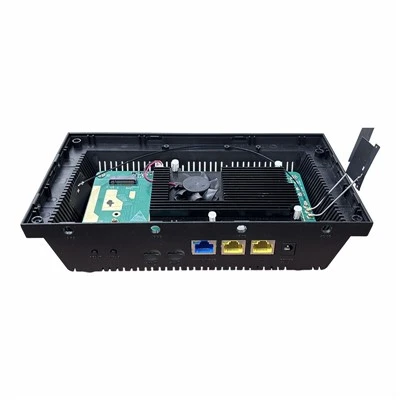
If you’re in the market for a new router that makes all this painless, connect with our team to talk through your requirements. We’ve got options for small apartments, big houses, and even people who just want a router that doesn’t make them want to throw their phone across the room.
WiFi 4 Router References:
- Federal Communications Commission. “Home Network Security Basics.” 2023.
- Wi-Fi Alliance. “Understanding SSID and Network Visibility.” 2022.
- National Cyber Security Centre (UK). “Securing Your Home Wi-Fi.” 2021.
Shenzhen Youzhi Internet Technology Co., Ltd.
Shenzhen Youzhi Internet Technology Co., Ltd. is one of the most experienced router manufacturers and suppliers in China. With abundant experience, we are committed to providing high quality customized products with competitive price. Please rest assured to buy bulk advanced router made in China here from our factory. Welcome to contact us for pricelist and free sample.
Address: Room B3, 3rd Floor, Building D, Tongfang Information Park, No.11 Langshan Road, Xili Subdistrict, Nanshan District, Shenzhen City, Guangdong Province, PRC
E-mail: simon.cheng@viewsmart.cn
WebSite: https://www.vigorslink.com/
